By


















Key Points
- The Corvidae Claude connector is live on production. Ask questions about your reporting in plain English and get answers from your own data.
- It is read-only. It cannot change anything, and it only reaches the companies your Corvidae login is already authorised for.
- It exposes 17 read-only tools covering channel performance, journeys, attribution model comparison, Google Analytics comparison, audience patterns and raw transactions. Claude picks the right one for each question.
- Setup is two steps. An owner or admin of your organisation's Claude account adds the connector once, then each person connects with their normal Corvidae login.
- The single most common blocker is a Claude permission, not a Corvidae one: if Add custom connector is greyed out, you are not an owner or admin of your Claude organisation.
- Claude Code is supported too, either with your Corvidae login or with an API key for scripts and shared machines.
What the Connector Actually Does
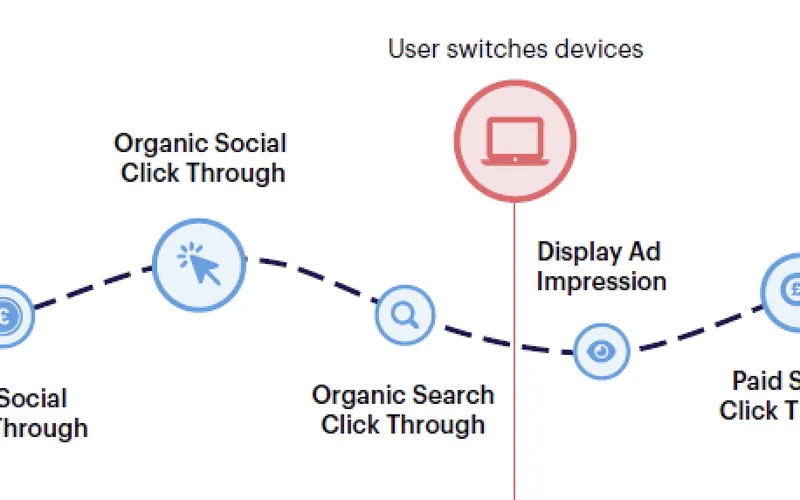
Corvidae holds a reconstructed view of your customer journeys. Getting an answer out of it has always meant opening the platform, picking a report, setting a date range and reading a chart. That is fine when you know what you are looking for. It is slow when you have a question.
The connector removes that step. You ask Claude, in a sentence, and it queries your Corvidae data directly:
- "How did paid search perform last week?"
- "Which channels drove the most revenue this month?"
- "Compare Corvidae and Google Analytics revenue by channel."
- "What are the busiest hours and weekdays for conversions?"
- "Which campaigns drove the most revenue last month?"
Behind that, Claude has 17 read-only tools to choose from, and it selects the right one and the right parameters itself. You do not need to know which report answers your question, which is rather the point.
Two things worth being explicit about, because they are the first questions every client asks. It is read-only: the connector can read data and cannot change anything. And it inherits your permissions rather than widening them, so it only reaches the companies your own login is authorised for. If a colleague connects, they see what they would have seen by logging in.
Before You Start
You need two things:
- A Corvidae login, the same one you use to sign in to Corvidae.
- Claude, either claude.ai (web or desktop) or Claude Code.
And one piece of information about your own Claude account, which decides who does the first step. On Team and Enterprise plans, custom connectors are added at the organisation level and only certain roles can add them: owners and primary owners on Team, and owners, primary owners or a custom role with Manage access to Libraries on Enterprise. Everybody else connects afterwards.
So before you begin, find out who owns your organisation's Claude account. On a smaller team that is usually whoever set it up. In a larger business it is often IT or the person who holds the billing.
These are the two values you will need. Neither is secret:
- Connector address: https://api.corvidae.ai/reporting/mcp
- OAuth Client ID: NSSv01pbmM1X6bmToojbyiLIfrDkNnUQ
Step 1: Your Claude Owner Adds the Connector (once per organisation)
This happens once, for everybody. If you are not an owner or admin, send this section to whoever is.
- In claude.ai, go to Customize, then Connectors.
- Select Add, then Add custom connector.
- Name it Corvidae AI. This is the name your colleagues will look for, so keep it exactly that.
- Enter the URL: https://api.corvidae.ai/reporting/mcp
- Open Advanced settings and enter the OAuth Client ID: NSSv01pbmM1X6bmToojbyiLIfrDkNnUQ
- Leave the client secret empty. There isn't one, and adding anything here will break the sign-in.
- Save.
That is the whole job, and it takes under two minutes. Adding the connector does not give anyone access to data: it only makes the connector available for people to connect to. Access is still decided by each person's Corvidae login.
Step 2: Each Person Connects (once each)
- In claude.ai, go to Customize, then Connectors.
- Find Corvidae AI in the list and select Connect.
- Sign in with your normal Corvidae login.
- Go back to claude.ai, start a chat, and ask a question about your data.
Everyone does this for themselves, deliberately. It is what keeps the connector inside each person's own permissions rather than handing the whole organisation one shared view.
If Add Custom Connector Is Greyed Out
This is where almost everyone stops, so it is worth saying plainly: that is a Claude permission, and there is nothing to fix on the Corvidae side.
On Team and Enterprise plans, only owners and primary owners can add a custom connector, plus Enterprise custom roles that include Manage access to Libraries. If you are a member of the organisation rather than an owner, the option is there but you cannot use it. You will see it greyed out rather than hidden, which is what makes it look like a fault.
The fix is not a setting you can change yourself. Send Step 1 above to your Claude owner, ask them to add the connector once, and then do Step 2. If you are not sure who that is, it is the person who pays for your Claude plan.
Claude Code: Two Routes
If you work in Claude Code, there are two ways in. Pick on whether a browser sign-in is practical.
Route A: sign in with your Corvidae login
Best for your own machine. Add the connector:
claude mcp add --transport http corvidae https://api.corvidae.ai/reporting/mcp --client-id NSSv01pbmM1X6bmToojbyiLIfrDkNnUQ --callback-port 3118
Then start Claude Code, type /mcp, select corvidae and choose Authenticate. A browser window opens for your Corvidae sign-in. Run /mcp again and corvidae should show as connected. If an option name differs in your version, claude mcp add --help will tell you.
Route B: use an API key
Best for scripts, scheduled jobs and shared machines, where nobody is sitting there to complete a browser sign-in.
A Corvidae administrator in your organisation creates the key under Settings, then API Key. Three things to know before they do: the key is shown only once, each company can have up to two active keys, and keys expire after six months by default.
Then add it:
claude mcp add --scope user --transport http corvidae-key https://api.corvidae.ai/reporting/mcp --header "X-API-Key: your-key-here"
Restart Claude Code and type /mcp. You should see corvidae-key connected. You may also see a message saying Dynamic Client Registration rejected (HTTP 404). That is expected when you are using a key rather than signing in, and it is harmless.
Treat the key like a password. Do not paste it into chats, emails, tickets or shared documents. If it may have been exposed, revoke it under Settings, API Key and create a new one. A key only reaches the companies it was created for.
What to Ask First
A tip that saves a round trip: name the company in your first message. Claude looks the company up before it can query anything, so "find the company called..." gets you to an answer faster than a question that leaves it guessing.
After that, a few that show what the connector is for:
- "Show channel performance for the last 7 days." The quickest way to confirm it is working.
- "Compare Corvidae and Google Analytics revenue by channel." This is the one that tends to start a conversation internally.
- "Compare attribution models for last month." Useful when somebody asks why two reports disagree.
- "What are the busiest hours and weekdays for conversions?" A scheduling question you would otherwise build a report for.
A few defaults worth knowing so the numbers make sense. With no dates given, Claude uses the last 7 complete days, ending yesterday, because today's data is imported the following day. Results come back in the company's own currency. Inactive companies are hidden unless you ask for them. And raw transaction data is limited to seven days at a time.
When Something Does Not Work
- No Add custom connector option. You are not an owner or admin of your Claude organisation. See the section above.
- The sign-in page does not appear, or fails. Check the connector URL character by character first. In Claude Code, if an earlier attempt left things in a loop, remove the entry with claude mcp remove corvidae and add it again under a new name, for example corvidae2. A stale entry is the usual cause.
- Connected, but a company is missing. Either your login is not authorised for it, or it is inactive. Your Corvidae contact can check both.
- An API key is rejected. It may have been revoked, expired, or copied incompletely. Create a new one.
The full reference, including anything we add later, lives in the Corvidae documentation.
Why We Built It This Way
There is a wider point here, and it is the reason this shipped as a connector rather than another dashboard.
Every AI surface a marketer now works with hands back counts and withholds the detail. Platform reporting tells you a number without telling you how it was reached. We have spent a good deal of this year writing about what that costs, most recently on the IAB's AI-Era Attribution Blueprint and the finding that nine in ten AI-influenced visits get credited to something else.
A connector into your own reconstructed journey data is the opposite arrangement. The model does the asking and the formatting. The evidence stays yours, it stays read-only, and it stays inside the permissions you already set. You can check every number it gives you, because it came from your data rather than someone else's dashboard.
That is worth more than convenience, though the convenience is real.
Ready to try attribution the Corvidae way?
Work with your dedicated Success Manager
Getting started on the road to accurate attribution doesn’t have to be complicated. Our team are on-hand to make the move to a new attribution tool as easy as possible.
Author